

 Kaitlyn Orred
.png)
RCS brands your messages by giving them a name, a logo, and sometimes a link preview. However, each kind of phone shows those a little differently, so it's important to evaluate your approach before you send. In this blog post, we'll walk you through where the two differ so that you can write messages that look right on both devices.
Here are some of the main differences between an RCS message on an Andorid vs. an iPhone.
-
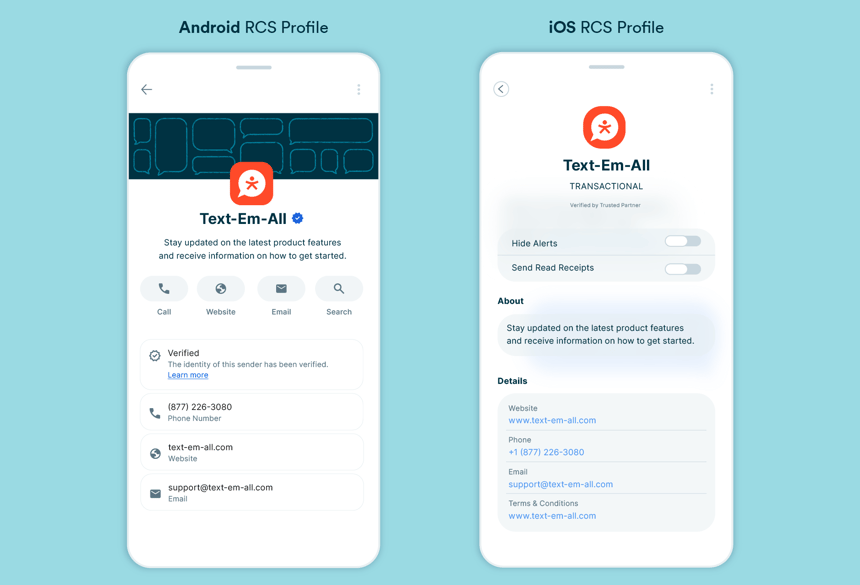
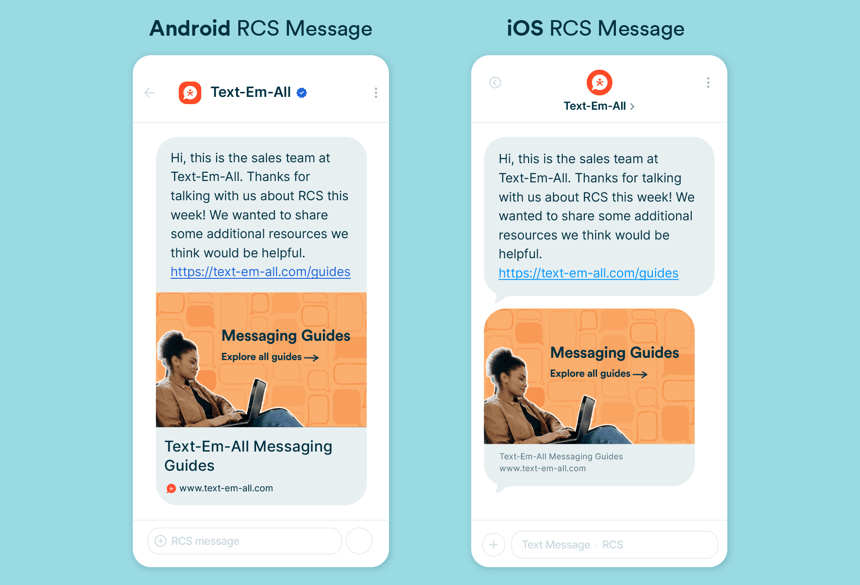
A checkmark shows beside the sender's name on Android, but on iPhone, there's no checkmark.
-
Your RCS profile shows a banner and buttons on Android, whereas on iPhone, there's no banner and plain links.
-
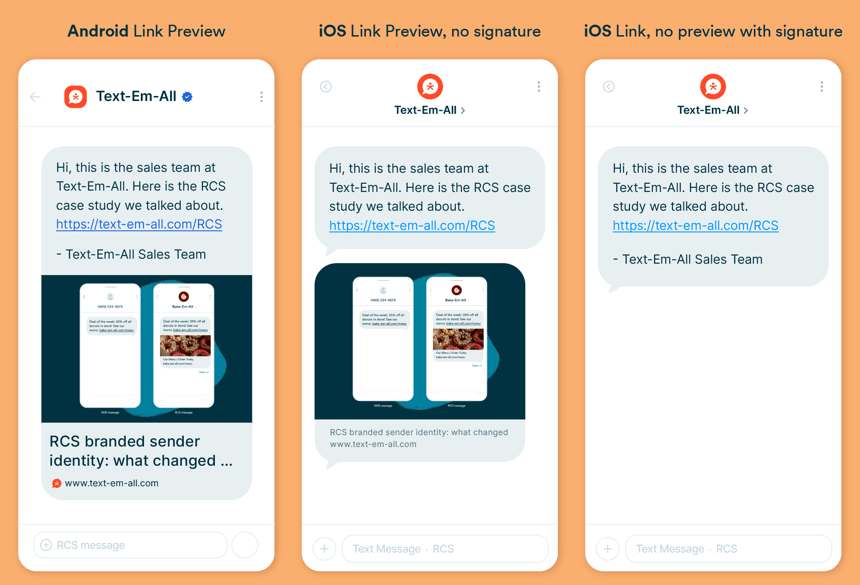
If you have any text after your link, the link preview will not show on an iPhone. However, it will show on Android regardless of if you have text after the link or not.
Both phones show the sender's name and logo, which brands your message and increases trust. As an example, after our employment services customer put their name on the message, opt-outs fell 41% from the year before. Exact looks vary by phone model, software version, and carrier, but this summary gives you the big picture.
How to use RCS to show up best on both phones
These five best practices will help your RCS messages look right on all your contacts' devices.
1. Put your link last
Put your link at the end of your RCS message, and if you have a signature, place it before your link. An iPhone only shows a link preview when nothing comes after the link. On Android, the link gets a card with an image, the page title, and the site name, even when text follows it.
If a closing line or a final signature has to stay, the link still works on both phones, but an iPhone will just show plain blue text instead of the card.
2. Use your profile screen, and treat the banner as a bonus
The sender profile screen, which opens when a contact taps your sender name, is the biggest difference between phones. On Android, the profile shows a full-width banner image, Call, Website, Email, and Search buttons, and an image gallery. The iPhone just shows the logo, a short description, and a list of contact details, with no banner and no gallery.
On Android, the banner partly overlaps the logo, so anything important in it needs to sit clear of that corner. If your banner has an offer or a date, anyone with an iPhone won't be able to see it. Put your phone number, website, and email in the contact details instead.
3. Keep your message short enough to preview
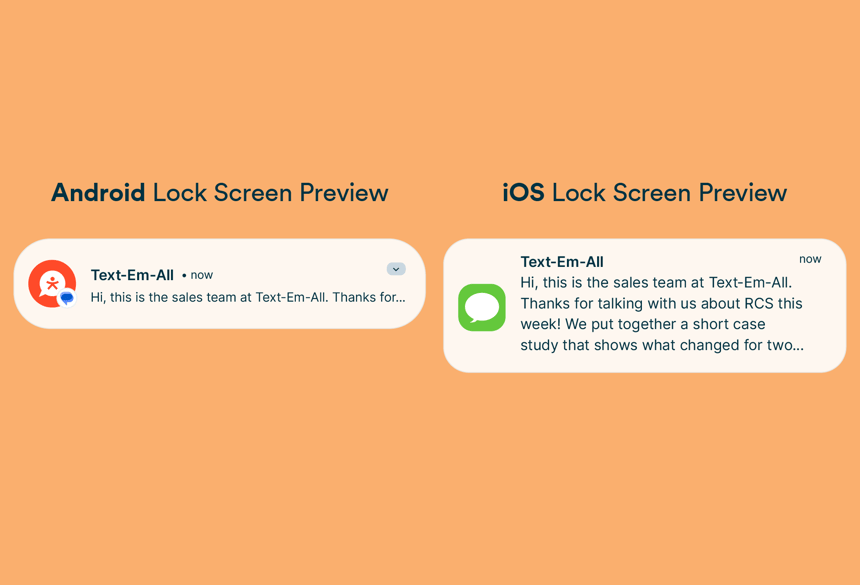
Keep your message to about 150 characters if you want it to show in full on an iPhone lock screen. Longer messages get cut off with an ellipsis after about four lines. On Android, the lock screen shows one line of any message, but pulling the notification down shows the whole message, with an Open link button if it has a link.
If your message has to run long, put the point and the ask before the cut, and the link last.
4. Plan for people who switch business messages off
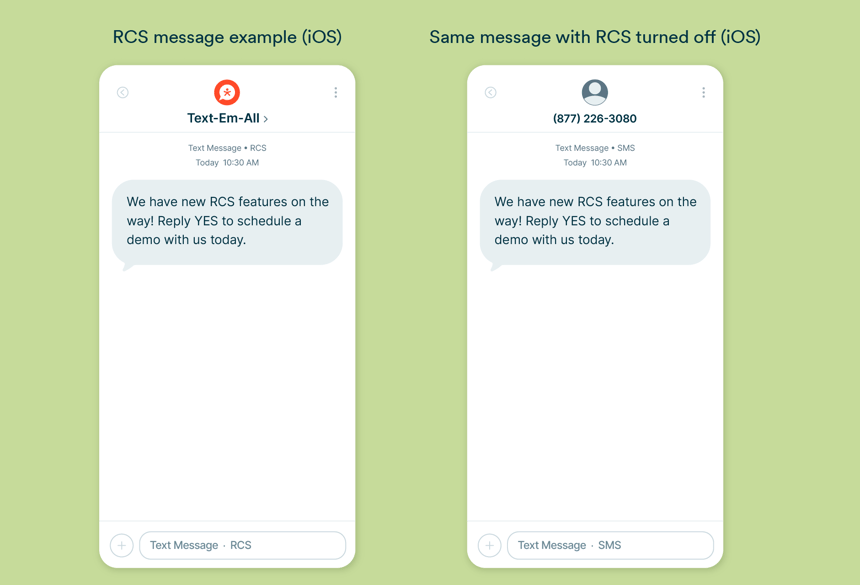
Make sure your message makes sense in both RCS and SMS formats, because your iPhone contacts can control whether business messages appear on their phones.
iPhone owners can turn RCS business messages on or off in Settings > Apps > Messages > RCS Messaging. If your message doesn't make it clear who you are, you may want to include a signature or begin your message with your organization's name.
5. Test on both phones before you launch
Send an RCS message to an iPhone and an Android phone before you launch, and look at what shows. Tap the sender's name on each to see the profile screen, and check that your link, banner, and contact details all come through the way you expect. Look at the lock screen and the message list too, to see where your first line gets cut off.
What does someone see if their phone can't show RCS?
A person whose phone can't show RCS still gets your message as a regular text. If their phone or carrier can't show RCS, they won't see your name and logo at all, but they will still get your message as a regular text.
RCS coverage for businesses is growing all the time as carriers approve more senders.
Common questions about RCS on iPhone and Android
What is a verified sender profile in RCS?
A verified sender profile is the name, logo, and contact details an RCS message shows in place of a typical phone number. Google Messages adds a checkmark beside the name once a sender is verified, according to Google. On an iPhone, the same profile appears in Apple's own layout.
Why doesn't my link preview show up on an iPhone?
If your link preview doesn't show up on an iPhone, it's likely you have text following the link. An iPhone shows a preview card only when the link is the last thing in the message, so a signature or a closing line after it leaves the link as plain blue text. Android shows the card either way.
Do iPhones support RCS messages from businesses?
Yes, when the iPhone runs iOS 18 or later, and the carrier supports RCS on iPhone, according to Apple Support. Availability depends on the region and carrier, and iPhone owners can turn off business messages in Settings.
Do I need a separate sender profile for iPhone and Android?
No. The same sender profile reaches both phones, and each phone displays it in its own way. Some vendors refer to this profile as an RCS agent.
Will everyone see my name and logo?
No. It depends on the person's phone, their carrier, and whether that carrier has approved your sender. Both Android and iPhone show a verified sender's name and logo when the phone and carrier support RCS.
Does RCS look the same on every iPhone and Android phone?
No. Phone models, software versions, and carriers can change what shows. This page describes an iPhone on iOS 26.5 and an Android phone using Google Messages as of September 2026.
Looking to get started with RCS?
If you're deciding if RCS is right for your organization, our RCS page explains what's included and how early access works.